Connect Letta Memory MCP to LoreBlendr (via Smithery)
Prerequisites
- LoreBlendr.AI App free trial activated or monthly Pro subscription.
- Free accounts on Smithery and Letta (no payment required).
Recommended Models
For best results with memory functionality, we recommend using:
- Claude Opus or Sonnet 3.5/4.1/4.5
- Any DeepSeek
- Any GLM
- OpenAI models such as GPT-5
Troubleshooting
If you encounter issues such as empty responses or errors with tool usage, instruct the model to send tools to the messages, not the tool endpoint. This is a temporary workaround to be able to use tools with models that don’t have tool use enabled. We will also support the tools API soon.
Steps
- In Letta, create an API key and keep it handy.
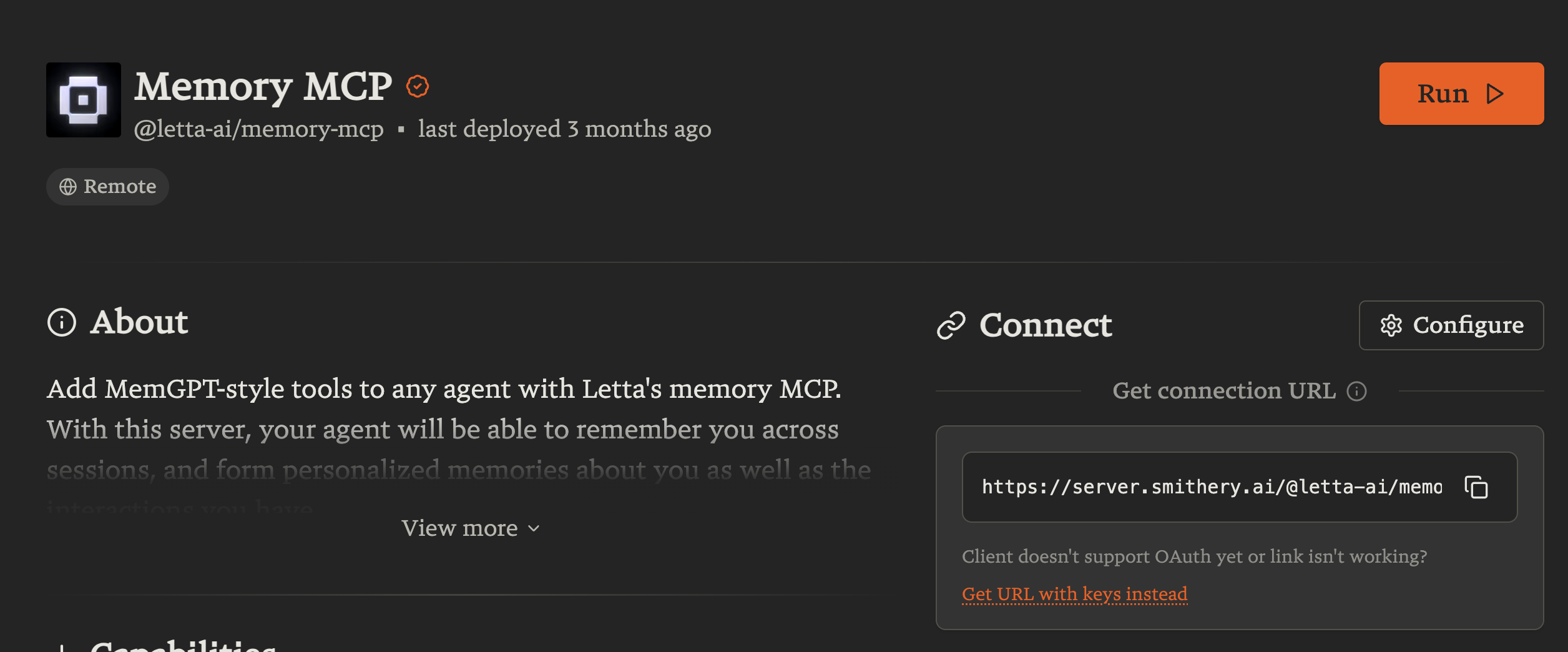
- Open the Memory MCP page on Smithery (
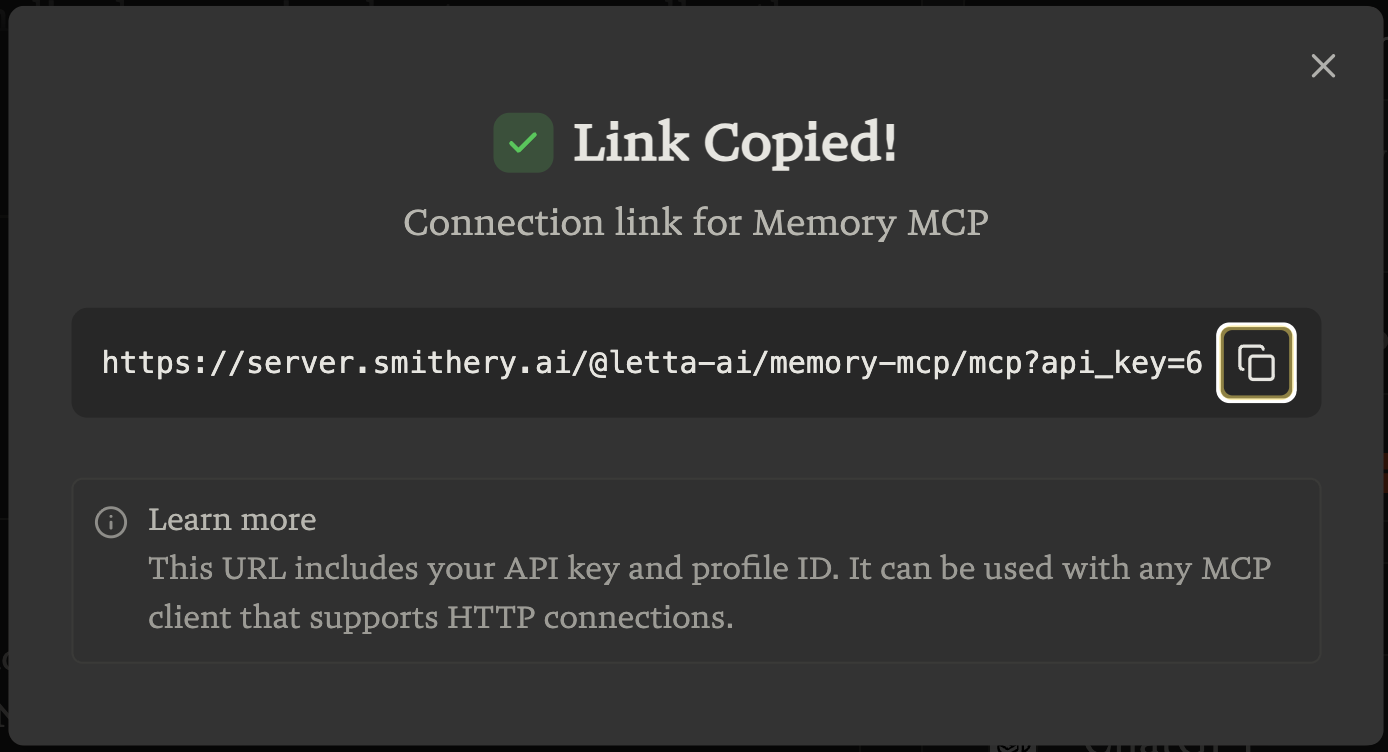
@letta-ai/memory-mcp) and configure it with your Letta API key and auser_id(or accept the default).- From that Smithery page, click “Get URL with keys instead” (the orange link below “Get Connection URL”) and copy the MCP server URL it provides (including any query parameters).
- In LoreBlendr:
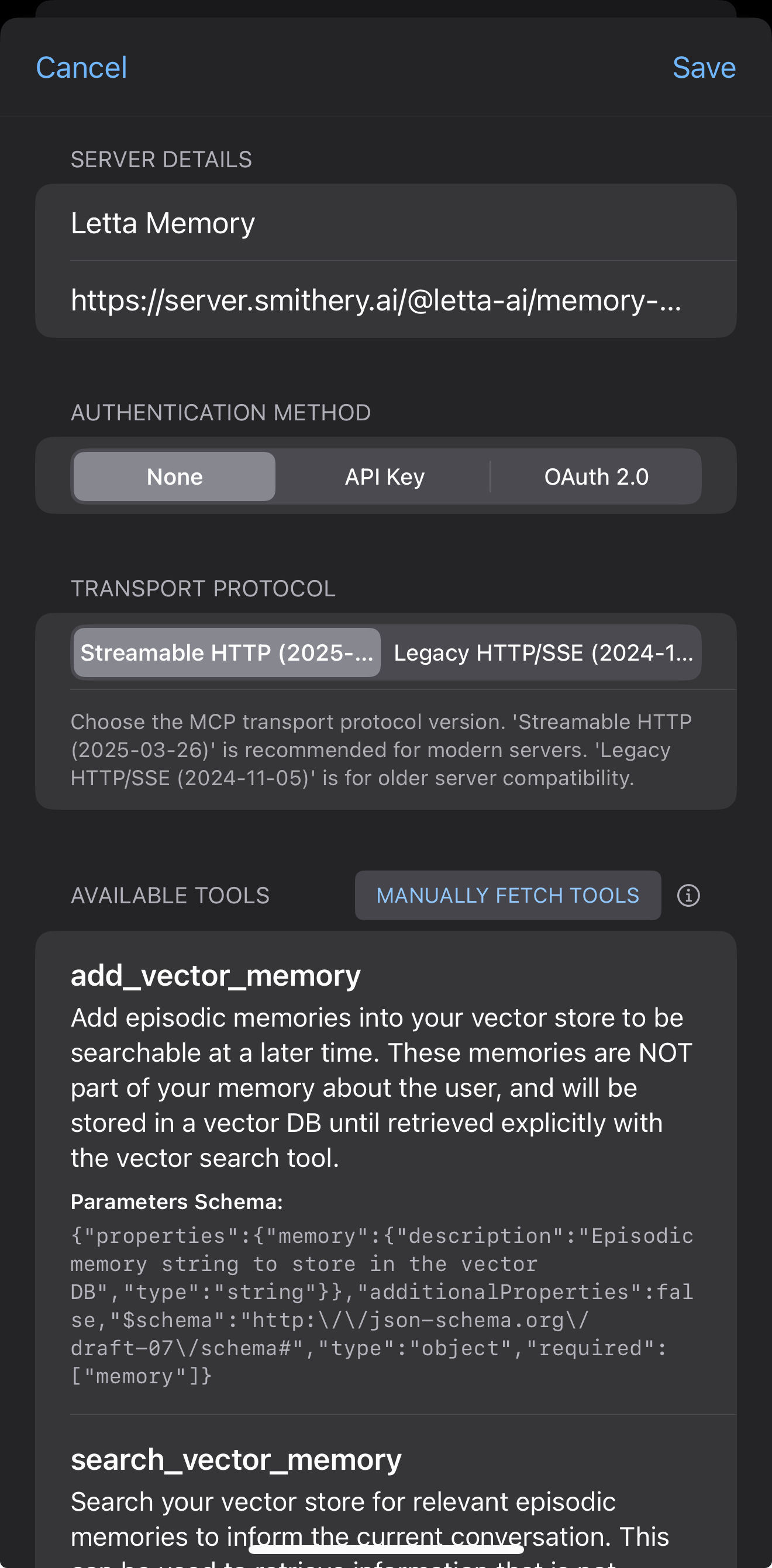
- Go to Settings → Advanced Chat Tools → MCP (or MCP Tools)
- Add a new MCP server using that URL
- Choose “None” for auth
- Give it a name (for example, “Letta Memory”)
- Paste the URL and save
- The tools will auto-populate after saving LoreBlendr.AI
- In a chat, enable that MCP tool for your character; then chat normally and ask the model to recall earlier details to confirm that memory is working.