Connect Exa Search MCP to LoreBlendr
Exa Search is a powerful search engine designed specifically for AI agents. It works exceptionally well for technical topics, finding high-quality code snippets, documentation, and real-time web information.
Prerequisites
- LoreBlendr.AI App free trial activated or monthly Pro subscription.
- An Exa API Key (you can get one by signing up at Exa.ai).
Recommended Models
For best results with search tools, we recommend using:
- Claude 3.5 Sonnet or Opus
- GPT-4o or GPT-5 (when available)
- DeepSeek-V3 or R1
Troubleshooting
If you encounter issues such as empty responses or errors with tool usage, instruct the model to send tools to the messages, not the tool endpoint. This is a temporary workaround for models with limited tool-use support.
Steps
- Get your Exa API Key from the Exa Dashboard.
- Construct your MCP Connection URL. Exa provides a hosted MCP endpoint that you can use directly.
- The base URL is:
https://mcp.exa.ai/mcp?exaApiKey=YOUR_EXA_API_KEY - Replace
YOUR_EXA_API_KEYwith the key you got in step 1. - To enable all tools (including deep research and LinkedIn search), use:
https://mcp.exa.ai/mcp?exaApiKey=YOUR_EXA_API_KEY&tools=web_search_exa,get_code_context_exa,crawling_exa,company_research_exa,linkedin_search_exa,deep_researcher_start,deep_researcher_check
- The base URL is:
- In LoreBlendr:
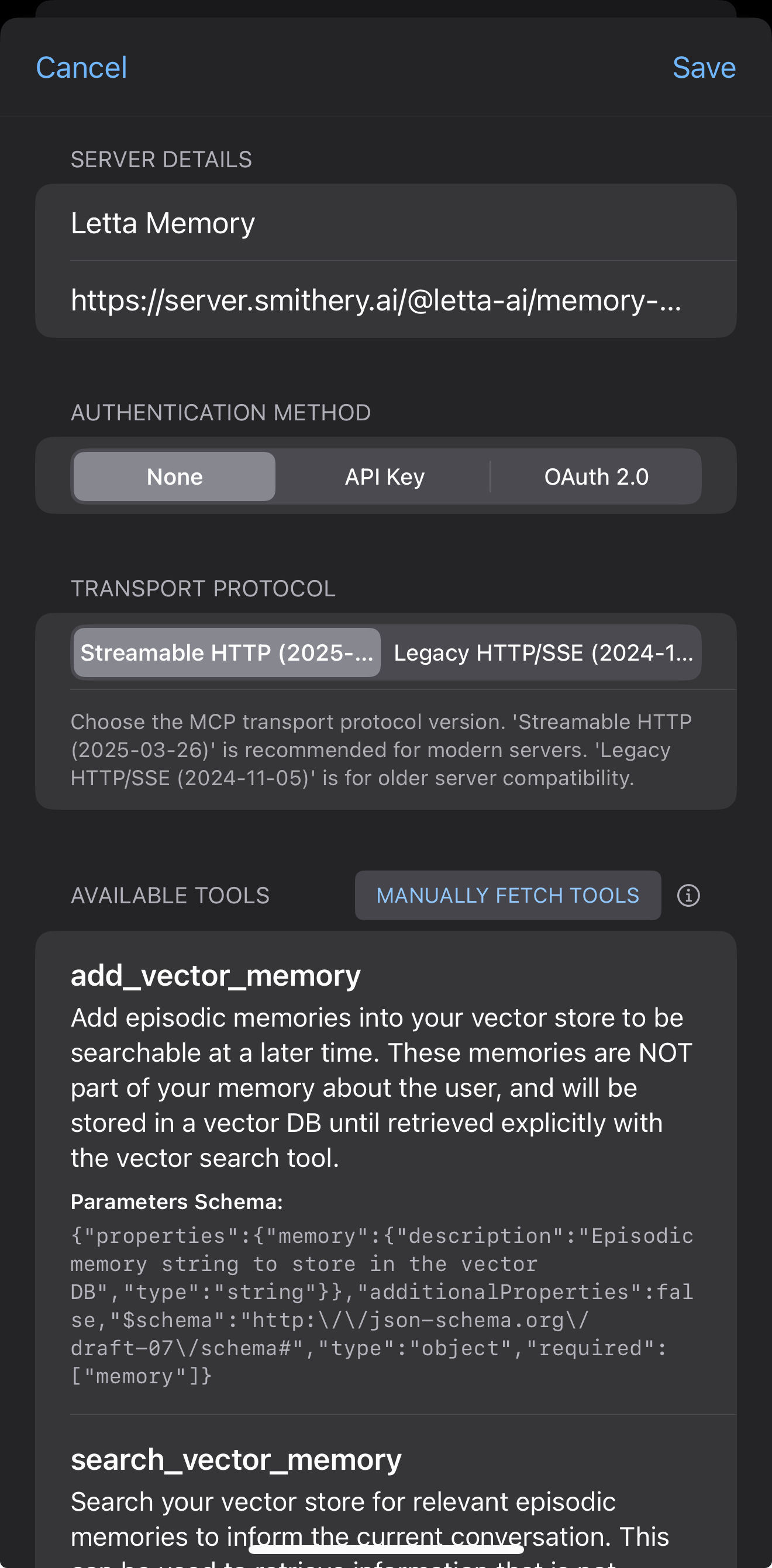
- Go to Settings → Advanced Chat Tools → MCP
- Add a new MCP server
- Name: Exa Search
- Auth: None
- URL: Paste the URL you constructed in step 2
- Save the configuration.
- In a chat, enable the Exa Search MCP tool for your character. You can now ask the model to “Search the web for…” or “Find code examples for…” to use the tools.